Saved on This Computer Only
Your work stays in this browser. It won't appear on another computer, another browser, or your phone. Clearing your browser history or site data, using a private window, or a device that resets at sign-out will erase it.
Build balanced class lists for next year. You add your students, choose which traits to spread evenly, and list students who should be kept apart or together. The tool sorts everyone into classes, and you can adjust by hand while it checks every rule. It runs in your browser, so there is nothing to install and no account to make.
These steps take you from a roster to finished class lists.
To use the tool offline, download the tool and open the saved file in your browser. Work saved in one copy doesn't appear in the other, so use Save file and Open file to move it.
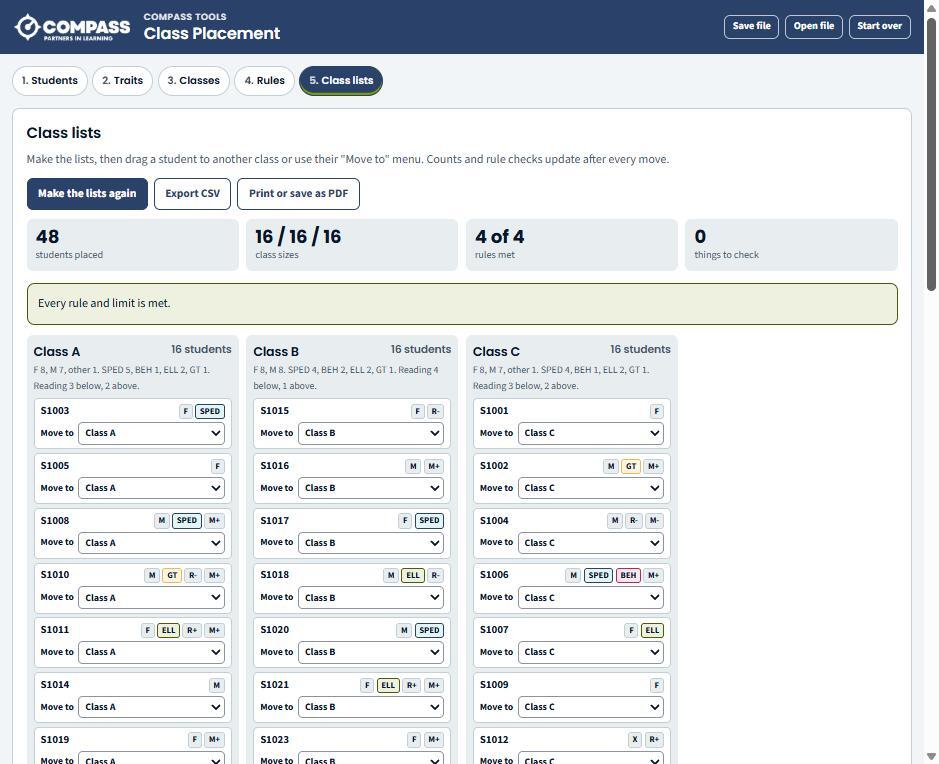
Your work stays in this browser. It won't appear on another computer, another browser, or your phone. Clearing your browser history or site data, using a private window, or a device that resets at sign-out will erase it.
Choose Save file to download your work. Use Open file to bring it back or move it to another computer. Save a file before you clear your browser, because Compass can't recover lost work.
Names you enter stay in this browser and in any file you save, and are never sent to Compass. Treat a saved file like any class list. On a shared computer, use initials or student ID numbers, and choose Start over when you finish.
If your team wants a version that everyone edits together, Compass can set up the Google Sheets version of this tool in your district's Google account. The finished tool belongs to your district.
Score your standards, mark prerequisites, and build a pacing map for the year.
Map where the final say rests on 35 classroom decisions, then reflect on the pattern.
Answers common questions from staff, families, or community members, managed from a Google Sheet you control.
See every tool we host or share, and how we help districts build tools of their own.