Skip to content
  • Email Signup
  • Contact Us
Compass Horizontal W Mod White (1)
MENU
  • Compass Partners in Learning
  • Services
    • Professional Development
    • Community & Family Engagement
    • Classroom & Team Support
    • Data, Evaluation & Planning
    • Culture & Connection
    • Training & Events
    • BHSSC Canvas Catalog
    • TIE Conference
    • Birth to Three
    • 21st Century Programs
    • SD SFEC
    • BHOLC
    • ThirdSpace Collaborative
    • First LEGO League
    • About Us
    • Staff
    • Careers
    • Compass Membership
    • Title Funding Planning & Support
    • PD Catalog
  • Blog & News
  • There are no suggestions because the search field is empty.

FAQ Chatbot

A help desk chatbot that runs from a Google Sheet your team already controls. You write the questions and answers, set your colors and contact information, and publish it as a small web app that staff, families, or community members can use from any device.

At a Glance

  • Who it's for: Offices, programs, and departments that answer the same questions over and over, such as enrollment, registration, onboarding, or a new platform rollout.
  • What it does: Matches each question to the answers in your FAQ sheet, keeps a log of what people ask, and points people to your contact email when it can't help.
  • What you need: A Google account (Workspace or personal). No coding is required, and an AI key is optional.
  • Your data: Questions, answers, and logs stay in your own Google Sheet. The chatbot only answers from the content you give it.
Make a Copy of the Template

Quick Start

These four steps get a working chatbot running with your own content. The full walkthrough on bradylicht.com covers each setting in more detail.

  1. Make a copy of the template. Use the Make a Copy button at the top of this page. You'll get your own spreadsheet with five tabs: Settings, Logs, Sessions, FAQ_Data, and Resource_Guides. Nothing you change affects the original.
  2. Fill in the Settings tab. Add your bot's name, welcome message, contact email, and colors. Leave the AI key blank for now.
  3. Add your questions. In the FAQ_Data tab, start with the five to ten questions you hear most. Write each question the way people actually ask it, and add keywords that cover the different ways someone might phrase it.
  4. Deploy and test. In the spreadsheet, go to Extensions, then Apps Script. Choose Deploy, then New deployment, and select Web app. Set it to execute as you, allow access for anyone, and deploy. Open the link you get, try a few questions, and check the Logs tab to see what matched.

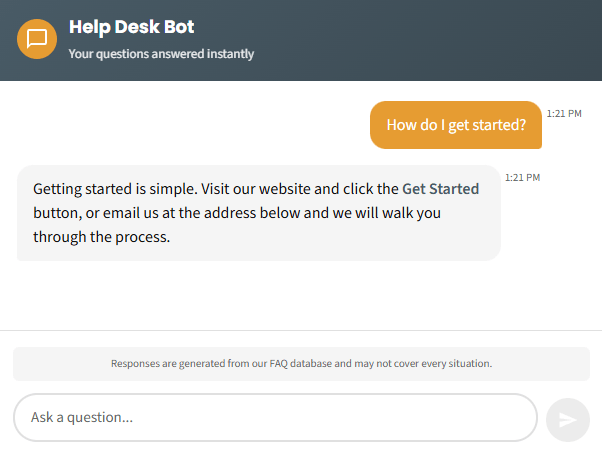
The FAQ Chatbot web app, showing a branded header, a welcome message, quick-start question buttons, and a message box.

Good to Know

Start Without AI

The chatbot works on keyword matching alone, with no cost and no outside service. If you later want it to handle harder questions, you can add a Claude API key in the Settings tab. Districts using ChatGPT Edu would need a separate Anthropic key for this.

You Stay in Control

Everything the chatbot says comes from your FAQ_Data tab. Edit a row and the change shows up on the next question. It won't search your website or connect to other databases.

Use the Logs to Improve It

The Logs tab shows every question and whether it found a match. Checking it regularly in the first few weeks shows you which keywords are missing and which new questions are worth adding.

Want Help Setting It Up?

Some teams set this up on their own. Others want help writing the FAQ content, matching district branding, or embedding the chatbot on a website or Canvas page. Compass can help with any of those, and the finished tool still belongs to your district.

For every setting and option, read the full FAQ Chatbot walkthrough on bradylicht.com.

Request Information

Get in Touch

Let’s talk about how a custom tool could save your team time.

Request Information

Related Tools

Canvas Auto Pacer

Drafts custom check-in messages for learners in self-paced Canvas courses based on their assignment progress.

Learn More About the Canvas Auto Pacer

Tracking and Reminder System

Tracks one item across a group of people and emails reminders on a schedule until everyone is done.

Learn More About the Tracking and Reminder System

Staff Rounding Dashboard

A Google Sheets dashboard for regular, structured check-ins that let school leaders hear directly from staff.

Learn More About the Staff Rounding Dashboard
Compass Horizontal W Mod White (1)

The Compass Vision

A future where schools, families, and communities are connected to support all individuals.


605-394-1876

1925 N Plaza Blvd.
Rapid City, SD 57702

  • Services
    • Professional Development
    • Community & Family Engagement
    • Classroom & Team Support
    • Data, Evaluation & Planning
    • Culture & Connection
  • Learning Opportunities
    • Training & Events
    • BHSSC Canvas Catalog
    • TIE Conference
  • Projects
    • Birth to Three
    • 21st Century Programs
    • SD SFEC
    • BHOLC
    • ThirdSpace Collaborative
    • First LEGO League
  • Who We Are
    • About Us
    • Staff
    • Careers
    • Compass Membership
    • Title Funding Planning & Support
    • PD Catalog
  • Blog & News

Copyright © 2026 Black Hills Special Services Cooperative.
Privacy Policy

BHSSC_Logo

Compass Partners in Learning is a division of Black Hills Special Services Cooperative